> For the complete documentation index, see [llms.txt](https://documentation.pushly.com/llms.txt). Markdown versions of documentation pages are available by appending `.md` to page URLs; this page is available as [Markdown](https://documentation.pushly.com/platform/platform-integrations/blueconic/using-blueconic-in-campaigns.md).
# Using BlueConic in Campaigns
Allows users to send notifications to subscribers based on recommendations from the BlueConic CDP
## Step 1: Configuring a Recommended Notification
Once users are in the Pushly platform, navigate to the Visual Builder during Campaign creation. Click the plus sign (+) to add a step to the workflow.
From the options that appear, select the Recommended Notification option to begin configuring user's settings.
## Step 2: Select the Integration Source
On the configuration step, select the Integration Type, Application Name, and Store Name from the Source drop-down selector.
## Step 3: Add a Configuration
Users can now start entering their configuration settings by creating a Boost. Every Boost can have multiple algorithms, and users can have multiple boosts in a single configuration. Click Add Configuration to begin.
| Algorithm Name | Description | Ramp Up |
| ----------------------- | -------------------------------------------------------------------------------------------------------------------- | ------- |
| Collaborative Filtering | | Yes |
| Breaking News | Items most viewed by all visitors in the time frame defined in the collector | No |
| Look-alike-articles | Items that have similar content to the item provided | No |
| Recency | Items recently bought/viewed by the provided user | No |
| Recent High CTRs | Items most clicked-through from BlueConic recommendations by all visitors in the time frame defined in the collector | No |
| Recently bought items | Items recently bought by the provided user | No |
| Recently carted items | Items recently put in the shopping cart by the provided user | No |
| Same Category | Selects an article from the same category | No |
Select one or more algorithms from the list available to users. For some algorithms, users can select the **Ramp Up** pace. Users can also adjust the Value slider to prioritize the algorithm when multiple are selected.
The available Ramp Up options are: **Very Slow, Slow, Normal, Fast, Instant**
## Step 4: Apply relevant filters to be included in the content recommendations
This allows users to target specific sitenames, authors, or publication dates. Users can also create exclusion filters to exclude specific categories, authors, or sites from the content recommendations.
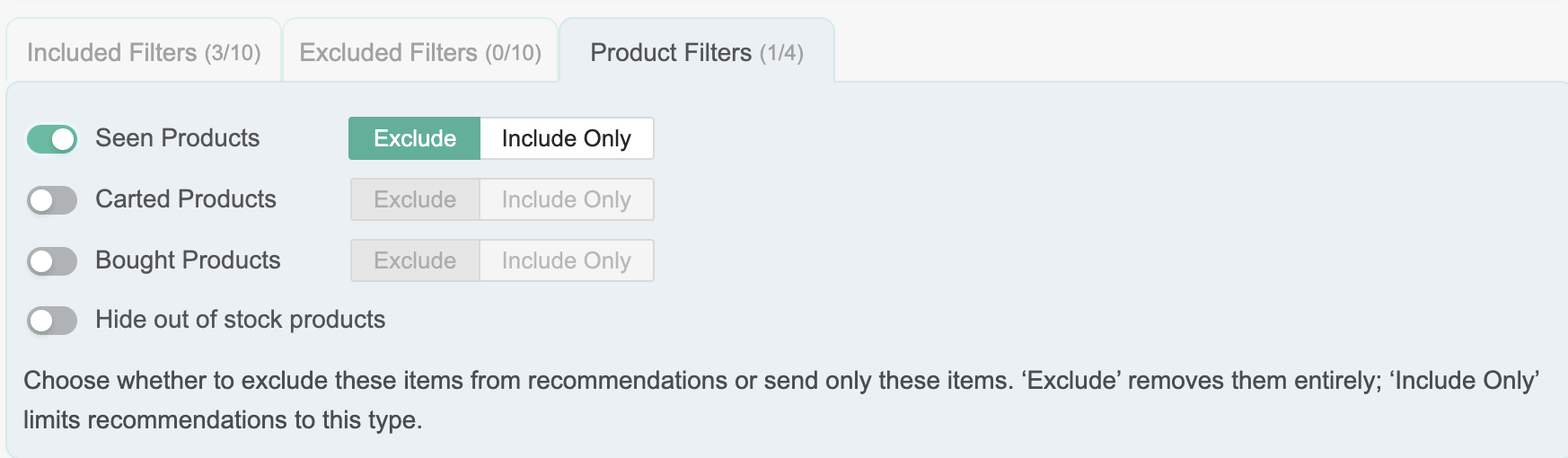
Product filters allow users to either exclude or exclusively include products that have been seen, added to a cart, or bought, as well as to hide out-of-stock products from the recommendations.
## Step 5: Create Additional Configurations
Platform users can create multiple Boosts that allow for better recommendations. Once all the configurations are complete, users can submit them. The final workflow will display the new Recommended Notification block.
---
# Agent Instructions
This documentation is published with GitBook. GitBook is the documentation platform designed so that both humans and AI agents can read, navigate, and reason over technical content effectively. Learn more at gitbook.com.
## Querying This Documentation
If you need additional information that is not directly available in this page, you can query the documentation by asking a question.
Perform an HTTP GET request on the following URL with the `ask` and `goal` query parameters:
```
GET https://documentation.pushly.com/platform/platform-integrations/blueconic/using-blueconic-in-campaigns.md?ask=&goal=
```
`ask` is the immediate question: it should be specific, self-contained, and written in natural language.
`goal` is what the user is ultimately trying to achieve, the reason they need the answer. Sharing it helps GitBook give you a better, more relevant answer. A goal is most helpful when it describes the outcome the user wants rather than restating the question. For example, with `ask=how do I create an API token`, a goal like `automate deployments from our CI pipeline` lets GitBook tailor the answer to that use case.
The response will contain a direct answer to the question and relevant excerpts and sources from the documentation.
Use this mechanism when the answer is not explicitly present in the current page, you need clarification or additional context, or you want to retrieve related documentation sections.