> For the complete documentation index, see [llms.txt](https://documentation.pushly.com/llms.txt). Markdown versions of documentation pages are available by appending `.md` to page URLs; this page is available as [Markdown](https://documentation.pushly.com/platform/journeys.md).
# Journeys
Allows users to set up automated, multi-step notification flows that deliver a series of notifications to subscribers based on configured triggers, schedules, and audience criteria
To access Journeys, click **Journeys** in the side panel. The Journeys list displays all journeys in a paginated, modern table view with sticky filters, targeted segment information, and inline performance metrics.

#### Journey Types
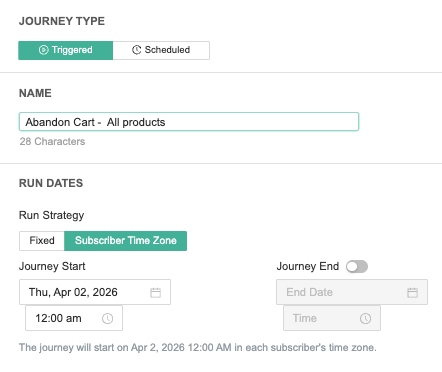
There are two journey types from which you can choose:
* **Triggered** — Enrolls subscribers automatically when a specific event occurs (e.g., abandoned cart, viewed item). Ideal for e-commerce publishers and welcome flows.
* **Scheduled** — Enrolls subscribers on a recurring schedule and sends notifications at your chosen cadence. Useful for weekly roundups, recurring content series, or periodic engagement flows.
#### Creating a Journey
To create a new journey, click the **Create Journey** button from the Journeys list page.
**Step 1: Configure Entry Settings**
Enter the following information:
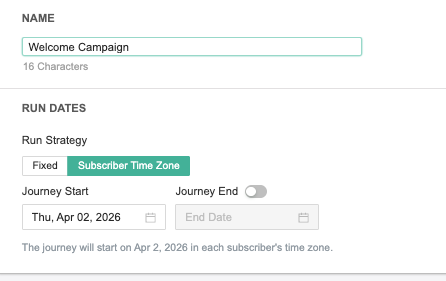
* **Name** — A descriptive name for the journey.
* **Start Date** — The date the journey begins enrolling subscribers.
* **End Date** (optional) — The date the journey stops enrolling new subscribers.
* **Trigger** — For triggered journeys, select the event that enrolls subscribers (e.g., cart abandonment). Configure the delay period before enrollment begins.
* **Schedule** — For scheduled journeys, configure the frequency at which the journey runs:
* **Schedule Type** — Daily, Weekly, or Monthly.
* **Day/Time** — The specific day(s) and time the journey enrolls subscribers. Time can be set in the subscriber's timezone.
* **Next 7 Occurrences** — A preview of upcoming enrollment dates is displayed on the right side.
* **Subscriber Entry Cap** — Limits how often a subscriber can be enrolled in this journey.
**Step 2: Configure Audience**
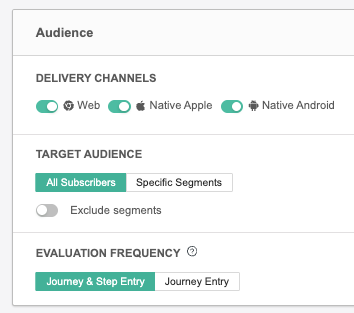
Choose which subscribers are eligible for enrollment:
* **All Subscribers** — All subscribers are eligible when the trigger fires or schedule runs.
* **Specific Segments** — Only subscribers matching one or more segments are eligible.
* **Exclude Segments** — Remove specific segments from the eligible audience.
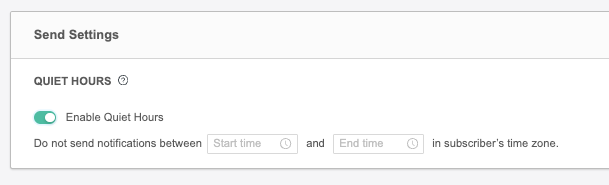
**Step 3: Configure Quiet Hours (Optional)**
Enable **Quiet Hours** to restrict notifications from being delivered during a specified time window (e.g., 10:00 PM to 6:00 AM). Notifications scheduled during quiet hours will be held and delivered once the window ends.
**Step 4: Build the Journey Flow**
After configuring the entry settings, click **Save & Continue** to open the **Journey Builder**. The builder provides a visual canvas where you add steps to define the subscriber's journey. See the Journey Builder page for full details on building flows with notifications, delays, and split tests.
#### Unsaved Changes Protection
The journey builder detects unsaved changes and provides two safeguards:
* **Navigation Warning** — If you try to navigate away, close the tab, or reload the page while there are unsaved changes, a browser confirmation dialog appears.
* **Dynamic Save Button** — The **Save** button label updates to **Save Changes** as soon as any modification is detected.
* **Reminder Toast** — A toast notification displays after updating a step, reminding you that there are unsaved changes in the journey.
#### Triggered Journeys
Triggered journeys enroll subscribers automatically when a specific event occurs. Common trigger types include:
* **Cart Abandonment** — Enrolls subscribers when they abandon a shopping cart. Requires the completion of E-Commerce Support for dynamic product copy. Configure the abandonment delay to determine how long to wait before considering the cart abandoned.
* **Welcome** — Enrolls subscribers at the time of notification subscription.
* **Catalog Item Triggers** — Enrolls subscribers based on interactions with catalog items (viewed items, trending items, etc.).
* **External Event** — Enrolls subscribers when your own systems send Pushly an event, such as a weather alert or a flight delay. See [External Event Triggers](/platform/journeys/external-event-triggers.md).
> ℹ️ The subscriber entry cap field limits how often subscribers are eligible for re-enrollment. For abandon cart journeys, limiting entry is not advisable as it will restrict sales opportunities.
#### Scheduled Journeys
Scheduled journeys run on a recurring cadence and enroll all eligible subscribers at each occurrence. Configure the schedule type (Daily, Weekly, Monthly), the specific day(s) and time, and the subscriber entry frequency.
For example, a weekly "Friday Event Guide" journey could be configured to run every Friday at 4:00 PM in the subscriber's timezone, enrolling all subscribers in the "Lifestyle Clickers" segment.
#### Journey Statuses
Journeys can be in the following states:
* **Draft** — The journey is being configured and has not been activated.
* **Active** — The journey is live and enrolling subscribers.
* **Paused** — The journey has been temporarily stopped. Subscribers already in the flow will continue through their remaining steps, but no new subscribers will be enrolled.
* **Completed** — The journey has reached its end date or been manually completed.
##
---
# Agent Instructions
This documentation is published with GitBook. GitBook is the documentation platform designed so that both humans and AI agents can read, navigate, and reason over technical content effectively. Learn more at gitbook.com.
## Querying This Documentation
If you need additional information that is not directly available in this page, you can query the documentation by asking a question.
Perform an HTTP GET request on the following URL with the `ask` and `goal` query parameters:
```
GET https://documentation.pushly.com/platform/journeys.md?ask=&goal=
```
`ask` is the immediate question: it should be specific, self-contained, and written in natural language.
`goal` is what the user is ultimately trying to achieve, the reason they need the answer. Sharing it helps GitBook give you a better, more relevant answer. A goal is most helpful when it describes the outcome the user wants rather than restating the question. For example, with `ask=how do I create an API token`, a goal like `automate deployments from our CI pipeline` lets GitBook tailor the answer to that use case.
The response will contain a direct answer to the question and relevant excerpts and sources from the documentation.
Use this mechanism when the answer is not explicitly present in the current page, you need clarification or additional context, or you want to retrieve related documentation sections.