> For the complete documentation index, see [llms.txt](https://documentation.pushly.com/llms.txt). Markdown versions of documentation pages are available by appending `.md` to page URLs; this page is available as [Markdown](https://documentation.pushly.com/integration/web-push/safari/safari-support.md).
# Safari on Desktop
Step-by-step guide to enabling Web Push for Safari web browser on Desktop devices
{% hint style="info" %}
Safari on Mac before version 13 (Ventura) does not implement the Web Push standard for which all other browsers do. Because of this, in order to set up your website to prompt for notification permissions and deliver notifications to these Safari visitors you must perform additional integration steps.
{% endhint %}
## Introduction
Before you start ensure you have the following:
* Have access to a Mac computer
* Have an Apple Developer Account
The below steps walk you through generating the required Web Push security certificates and uploading them to the platform.
{% hint style="warning" %}
You must create a separate web push certificate for **each** site/domain that opts in subscribers. Re-using certificates across multiple domains will result in fewer notifications delivered and higher unsubscribe rates.
{% endhint %}
## Step 1: Create a Certificate Request (CSR)
1. On a Mac computer Open the `Keychain Access` application and click on `Certificates` under the `Category` left navigation section.
2. Within the `Keychain Access` drop down menu, select `Keychain Access` > `Certificate Assistant` > `Request a Certificate from a Certificate Authority`.
3. In the Certificate Information window, enter the following information:
* In the `User Email Address` field, enter your email address.
* In the `Common Name` field, create a name for your private key (e.g. Company Name Web Push).
* The `CA Email Address` field should be left empty.
* In the `Request` group, select the `Saved to disk` option.
4. Click `Continue` within Keychain Access and save the CSR to disk to complete this step.
## Step 2: Add a Website Push ID
{% hint style="danger" %}
If you are renewing an existing certificate you can skip this step and move to Step 3 since the Website Push ID should already exist within your Apple developer account.
{% endhint %}
1. [Login](https://developer.apple.com/account/ios/certificate/) to your company's Apple Developer Console account.
2. Click on `Certificates, IDs, and Profiles` in the left navigation bar.
3. Choose `Identifiers` in the left navigation bar.
4. In the top-right dropdown choose `Website Push ID` and then click the `+` button next to the `Identifiers` header.
5. Choose `Website Push IDs` from the list of options and press the `Continue` button.
6. Enter a description. Eg: `Pushy Web Push`
7. Enter an identifier. Eg: `web.com.YOUR_COMPANY_NAME.webpush`
8. Click the `Continue` and then `Register` button.
## Step 3: Generate a Web Push Certificate
* Click on `Certificates` in the left nav and press the `+` sign next to the `Certificates` header..
* Choose `Website Push ID Certificate` from the list of Production certificate options and then click `Continue`.
* Select the Website Push ID that was created in the previous step and then click `Continue`.
* Click the `Choose File` button, browse for the CSR file that we created in the first step, and click `Continue`.
* The next screen informs you that your certificate is ready. Click `Download` to store the certificate on your computer.
## Step 4: Generate the .p12 Certificate
* Navigate to the certificate you saved on your computer and double click it to install it to the `Keychain Access` application.
* Open the `Keychain Access` application and click on `Certificates` under the `Category` left navigation section.
* Right click on the installed Website Push ID certificate and choose `Export`.
* In the save dialog, choose a filename (or leave the default), choose the `.p12` file format, and click the `Save` button.
* You will be prompted to enter a password - leave both boxes empty and click `OK`.
* Click `Allow` to save the p12 certificate to your computer.
## Step 5: Upload the Certificate via the Platform
* Log in to the platform.
* In the left navigation choose `Settings` and then `Overview`.
* Ensure all subdomains that users will be prompted on are in the `SDK Allowed Domains` list.
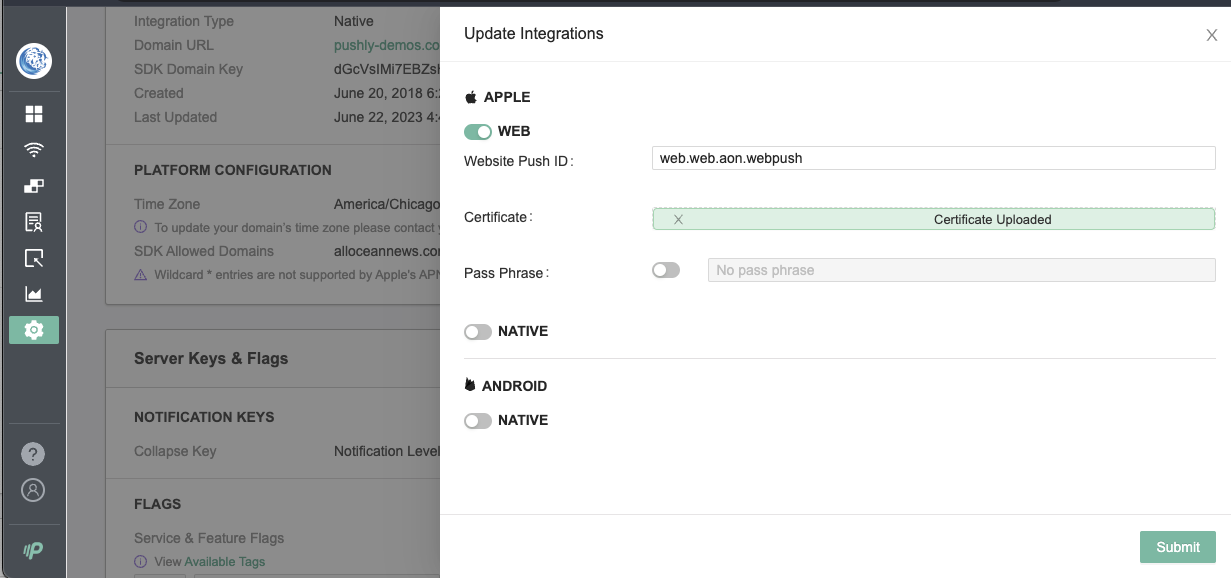
* Scroll down to the `Send Integrations` section and click the `Edit` button.
* Enable the `WEB` switch and then enter the `Website Push ID` you created in Step 2. (Eg: "web.com.example")
* Upload the `p12` file from your computer and only enable the `Pass Phrase` switch if you set a password when creating the certificate.
* Click the `Submit` button at the bottom of the page to finish setting up Safari Support.
* Note: These changes may take up to 1 hour to take effect.
{% hint style="info" %}
NOTE: The Safari Certificate will need to be updated on an annual basis. Your Pushly Account Manager will reach out when the Safari Certificate has expired and needs to be updated.
{% endhint %}
---
# Agent Instructions
This documentation is published with GitBook. GitBook is the documentation platform designed so that both humans and AI agents can read, navigate, and reason over technical content effectively. Learn more at gitbook.com.
## Querying This Documentation
If you need additional information that is not directly available in this page, you can query the documentation by asking a question.
Perform an HTTP GET request on the following URL with the `ask` and `goal` query parameters:
```
GET https://documentation.pushly.com/integration/web-push/safari/safari-support.md?ask=&goal=
```
`ask` is the immediate question: it should be specific, self-contained, and written in natural language.
`goal` is what the user is ultimately trying to achieve, the reason they need the answer. Sharing it helps GitBook give you a better, more relevant answer. A goal is most helpful when it describes the outcome the user wants rather than restating the question. For example, with `ask=how do I create an API token`, a goal like `automate deployments from our CI pipeline` lets GitBook tailor the answer to that use case.
The response will contain a direct answer to the question and relevant excerpts and sources from the documentation.
Use this mechanism when the answer is not explicitly present in the current page, you need clarification or additional context, or you want to retrieve related documentation sections.